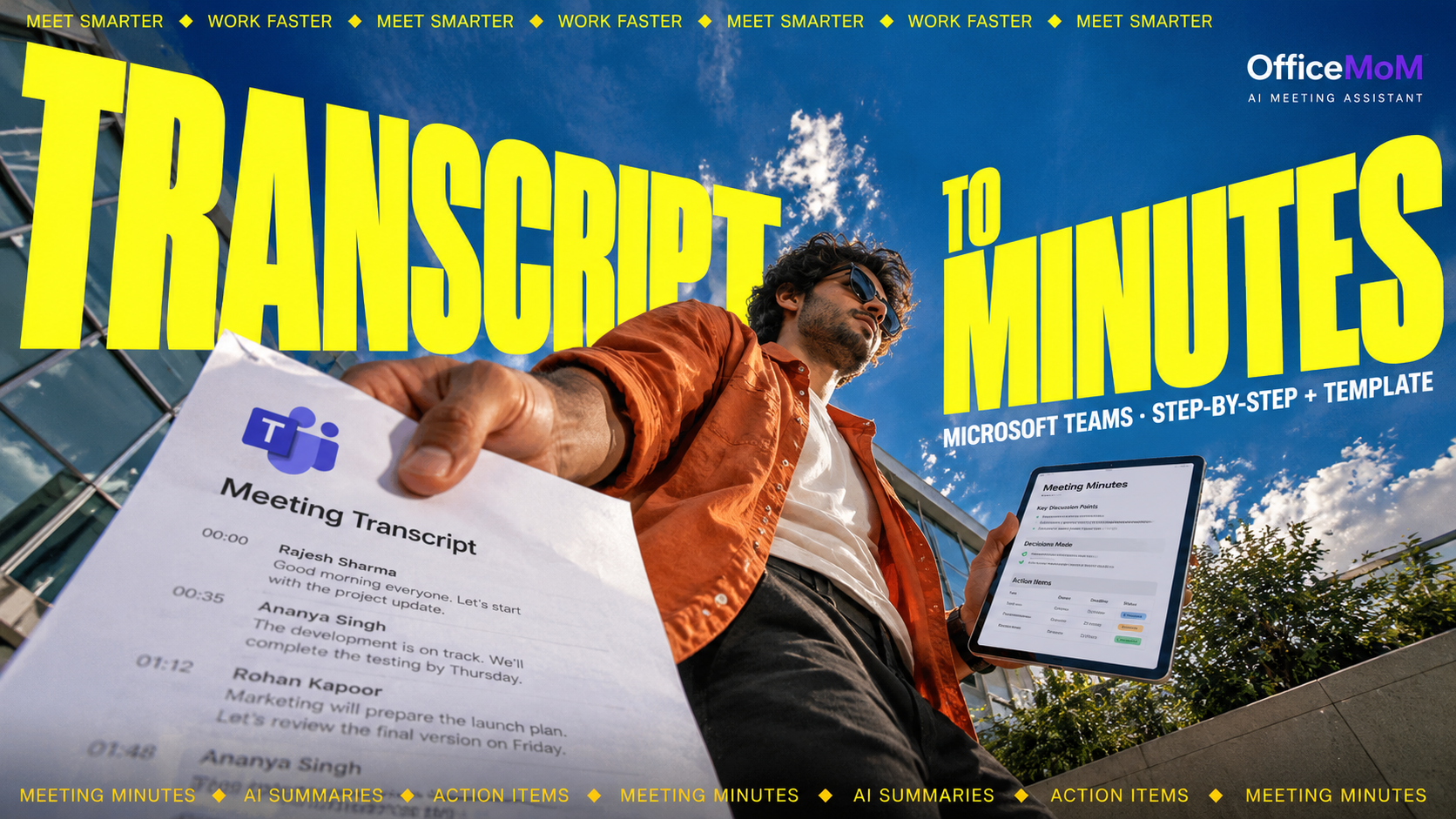
How to Convert a Microsoft Teams Transcript into Meeting Minutes
Learn how to download a Microsoft Teams transcript and turn it into clear meeting minutes, decisions and action items. Includes a practical workflow and free template.
How to Convert a Microsoft Teams Transcript into Meeting Minutes: Step-by-Step + Template
Microsoft Teams transcripts capture what people said during a meeting. But when you need to share outcomes with your team, a long transcript is not always the most useful format.
To convert a Microsoft Teams transcript into meeting minutes, download the transcript, identify the main discussion points, separate confirmed decisions from suggestions, and organise agreed tasks into an action-item list with owners and deadlines. A consistent template or AI-assisted workflow can help you do this faster while preserving the original meaning.
This guide explains how to download a Teams transcript, transform it into professional meeting minutes, use AI responsibly, and create a document your team can actually act on. You will also get a copy-ready template and an example you can adapt to your next meeting.
Quick answer: What is the fastest way to convert a Teams transcript into meeting minutes?
The process has five main steps:
- Open the completed meeting in Microsoft Teams and locate its transcript.
- Download the transcript as a
.docxor.vttfile, depending on the available options. - Organise the conversation into topics, key takeaways, and confirmed decisions.
- Extract action items, including owners and deadlines when they were explicitly agreed upon.
- Review the minutes against the original transcript before sharing them.
Microsoft provides a step-by-step guide to starting, stopping, and downloading Teams transcripts.
If you regularly attend Teams meetings, you can also use an AI meeting assistant such as OfficeMoM to help generate structured minutes, summaries, and action points for future meetings.
What is the difference between a Teams transcript and meeting minutes?
Although these terms are related, they serve different purposes.
| Document | What it contains | Why it is useful |
|---|---|---|
| Microsoft Teams transcript | A written record of spoken conversation, often with speaker names and timestamps | Helps you review what participants said |
| Meeting summary | A concise overview of the main discussion points | Helps readers understand the conversation quickly |
| Meeting minutes | A structured record of discussions, decisions, responsibilities, and follow-ups | Helps the team understand what was agreed and what happens next |
| Action-item list | Specific tasks, owners, and deadlines | Helps turn meeting outcomes into work |
For example, a transcript might contain several minutes of discussion about a product launch. A summary might state that the team reviewed the launch timeline and outstanding technical issues.
The meeting minutes should go one step further by recording the decisions actually made, the tasks agreed upon, the people responsible, and any questions that remain unresolved.
The goal is not to rewrite every sentence. It is to preserve the important information in a format that is easy to read and use.
Step 1: Find the transcript of your Microsoft Teams meeting
First, confirm that a transcript was created for the meeting.
Microsoft Teams can generate a live transcript when transcription is enabled. However, seeing live captions during a meeting does not necessarily mean that a saved meeting transcript is available afterward.
If you did not start transcription or do not have access to the saved transcript, check your meeting's recording and transcription settings or ask the meeting organizer whether a transcript is available.
How to download a Microsoft Teams transcript
For a completed meeting, the usual desktop workflow is:
- Open Microsoft Teams and select Chat.
- Open the chat for the meeting you want to review.
- Select Recap.
- Open Transcript.
- Select the download option and choose the available file format.
The precise interface can vary with your Teams version, meeting type, and organization settings.
By default, meeting organizers and co-organizers can download transcripts. Your organization's policies may affect whether other participants can download them.
If the transcript is missing, check the meeting's transcription settings and permissions. You can also consult Microsoft's official guide on downloading and managing Teams transcripts.
Step 2: Choose the right transcript format
Microsoft Teams commonly offers transcripts in Word document (.docx) and WebVTT (.vtt) formats, subject to availability and permissions.
Which one should you use?
| Format | Best for | Considerations |
|---|---|---|
.docx |
Reading, reviewing, correcting, and manually organising a transcript | Convenient for a document-based workflow |
.vtt |
Working with timestamped transcript cues | Contains timing information and is less convenient to read as an ordinary document |
For a person preparing meeting minutes, .docx is usually a convenient starting point because it is easy to review and organise.
Choose .vtt when timestamps are important to your workflow or you are working with tools that support that format.
Keep the original file. You may need to refer back to it when verifying a speaker's statement, checking a deadline, or confirming whether a decision was actually made.
Step 3: Review the transcript before summarising it
Before creating meeting minutes, review the transcript for information that may affect the meaning of the conversation.
Pay particular attention to:
- Speaker names and attribution.
- Product names, company names, and technical terms.
- Dates, figures, prices, and deadlines.
- Negations, qualifications, and tentative statements.
- Sentences that appear incomplete or incorrectly transcribed.
For example, “We may launch next week” does not mean the team decided to launch next week.
Similarly, “Let's consider changing the budget” is not the same as “The budget change was approved.”
An inaccurate transcript can lead to inaccurate minutes, even when the document looks professionally formatted.
Correct obvious errors only when you can verify the intended meaning. If a statement is unclear, flag it for review instead of guessing.
Step 4: Organise the conversation into key topics
A transcript follows the conversation, but good meeting minutes organise information around the meeting's agenda and outcomes.
Start by identifying the main topics discussed. A weekly product meeting, for instance, might include:
- Product development and outstanding issues.
- Release planning.
- Marketing preparation.
- Customer feedback.
- Responsibilities for the next week.
Write a concise summary under each relevant topic. Remove repetition and unrelated conversation unless it is important to the meeting's outcomes.
A useful discussion summary answers three questions:
- What was discussed?
- What information or concern mattered?
- What conclusion, if any, was reached?
Do not assume that every topic resulted in a decision. Some discussions end with a request for more information or an agreement to revisit the question later.
Step 5: Separate confirmed decisions from general discussion
This is one of the most important steps when converting a Teams transcript into professional meeting minutes.
Use separate sections for discussion points, decisions, and open questions.
Example
Discussion: The team reviewed the proposed release date and discussed outstanding quality checks.
Possible suggestion: “We could launch next Thursday if testing is complete.”
Confirmed decision: “The team agreed to review the launch date after receiving the final QA report.”
Open question: What launch date will be approved after testing?
This structure prevents a suggestion from being recorded as a decision.
It also helps managers and colleagues understand what has been agreed, what still needs approval, and what information is missing.
Step 6: Extract action items with owners and deadlines
Action items turn the meeting's outcomes into practical next steps.
For each task, identify:
- Task: What needs to be done?
- Owner: Who is responsible?
- Deadline: When is it due?
- Status: What is the current state of the task?
Record an owner or deadline only when the transcript or other verified meeting context supports it.
If the team has not assigned a task, use “Owner to be assigned.” If nobody agreed on a deadline, use “To be confirmed.”
This is particularly important when using AI to generate meeting minutes. An AI system should not invent an owner, deadline, approval, or commitment just to complete a table.
Step 7: Turn the transcript into a reusable meeting-minutes format
Once the key information has been extracted, organise it into a consistent document.
A practical meeting-minutes structure includes:
- Meeting title, date, and attendees.
- Purpose and agenda.
- Discussion summaries by topic.
- Confirmed decisions.
- Action items and responsibilities.
- Unresolved questions and follow-ups.
- Next meeting details, if applicable.
Using the same format for recurring Teams meetings helps colleagues find information quickly and makes meeting documentation easier to maintain.
Example: Convert a Microsoft Teams transcript into meeting minutes
Consider this fictional excerpt from a product planning meeting:
“The landing page needs to be ready before the next campaign. Marketing thinks the copy can be completed by Thursday. Design still needs to update the screenshots. Let's review the final page on Friday. We haven't confirmed the launch date, though. We should wait for the engineering update before announcing anything.”
The transcript contains multiple useful details, but they are mixed together.
Here is how the content could be converted into structured meeting minutes.
Meeting details
Meeting: Product Planning Weekly Review
Purpose: Review campaign readiness and outstanding launch tasks.
Attendees: Marketing, Design, Product, and Engineering representatives.
Discussion summary
- The landing page must be prepared before the campaign launches.
- Marketing copy and product screenshots remain outstanding.
- The team needs an engineering update before confirming the launch date.
Decisions made
- The team will review the final landing page on Friday.
- The public launch announcement will wait until the engineering update is available.
Action items
| Task | Owner | Deadline | Status |
|---|---|---|---|
| Complete landing page copy | Marketing team | Thursday | Pending |
| Update product screenshots | Design team | Not specified | Pending |
| Review the final landing page | Relevant team members | Friday | Pending |
| Provide the engineering update | Engineering team | Not specified | Pending |
Open question
- What is the confirmed product launch date?
Notice that the minutes do not invent a deadline for Design or Engineering. They also distinguish the agreed page review from the still-unconfirmed launch date.
This is the difference between a readable summary and actionable meeting minutes.
Copy-and-paste AI prompt for converting a Teams transcript into meeting minutes
If you use an AI tool approved by your organization for this purpose, a well-structured prompt can help you produce consistent minutes from a transcript.
Copy the prompt below and add your transcript where indicated.
Prompt:
Act as a professional meeting secretary. Convert the Microsoft Teams transcript below into concise, accurate, and structured meeting minutes.
Use the following sections:
- Meeting title, date, and attendees, if available.
- Meeting purpose and agenda.
- Discussion summary organized by topic.
- Confirmed decisions.
- Action items in a table with task, owner, deadline, and status.
- Open questions, unresolved issues, and items requiring approval.
- Suggested follow-up points for the next meeting.
Follow these rules:
- Preserve the original meaning of the transcript.
- Do not invent decisions, deadlines, names, or responsibilities.
- Distinguish confirmed decisions from suggestions and tentative plans.
- If an owner or deadline is missing, write “To be confirmed.”
- Remove repetition and irrelevant conversation without omitting important context.
- Flag unclear statements instead of guessing.
- Keep the minutes professional, concise, and easy to scan.
- Use clear headings and plain English.
- Review the output for accuracy and consistency with the source transcript.
Microsoft Teams transcript:
[Paste the transcript here.]
Important: Avoid pasting confidential meeting transcripts into an AI service unless your organization permits it. Follow your company's data-handling rules and any applicable participant-consent or recording requirements.
Can you automate Microsoft Teams meeting minutes instead of preparing them manually?
Yes. You can use a repeatable template to prepare minutes from downloaded transcripts, or use a meeting assistant that supports your meeting workflow to reduce the manual work involved.
The right option depends on whether you want to process a transcript after a meeting or capture meetings and generate documentation as part of your ongoing workflow.
Use OfficeMoM for Microsoft Teams meetings
OfficeMoM is an AI meeting assistant that helps turn meeting conversations into structured documentation, including meeting minutes, AI summaries, decisions, and action points.
OfficeMoM lists Microsoft Teams among its supported online meeting platforms. Its Teams integration is designed to generate meeting minutes and summaries from Teams calls.
Explore the OfficeMoM Microsoft Teams integration to review the available setup information.
With an appropriate meeting setup, OfficeMoM can help you spend less time manually organising notes and more time reviewing the decisions and follow-ups that matter.
You can also explore OfficeMoM's features to understand its meeting transcription, summaries, action-item support, and other meeting documentation capabilities.
Already have a downloaded Teams transcript? Follow the workflow and template in this guide to structure and verify that existing transcript. For future meetings, consider setting up OfficeMoM's Teams meeting workflow so that meeting documentation is easier to generate consistently.
Frequently asked questions
1. How do I download a transcript from Microsoft Teams?
Open the relevant meeting chat, select Recap, open Transcript, and select the download option. The available formats and download permissions may depend on your Teams configuration and organizational policies.
2. Can a Microsoft Teams transcript be converted into meeting minutes?
Yes. The transcript can serve as the source for a structured meeting-minutes document. Identify the discussion points, confirm decisions, extract agreed action items, assign owners and deadlines only when known, and verify the final document against the transcript.
3. What is the best format for a Teams transcript?
A .docx file is often convenient for reading and reviewing a transcript. A .vtt file is useful when the workflow needs timestamped transcript cues. Choose the format supported by your tools and requirements.
4. What should meeting minutes include?
Meeting minutes usually include the meeting details, agenda, key discussion points, confirmed decisions, action items, owners, deadlines, and unresolved questions. Formal meetings may require additional information under an organization's procedures.
5. Can AI extract action items from a Teams transcript?
AI can help identify potential tasks, decisions, and follow-ups from a transcript. Review the results before sharing them to make sure that task descriptions, owners, deadlines, and commitments accurately reflect the conversation.
6. Does OfficeMoM support Microsoft Teams meetings?
OfficeMoM lists Microsoft Teams as a supported meeting platform and describes its integration as providing meeting minutes, AI summaries, and action points. See the OfficeMoM integrations page for current product and setup information.
7. Can I create meeting minutes if I do not have a transcript?
You can create minutes from reliable notes or other meeting records, but missing information may make it harder to verify exact wording, decisions, and responsibilities. For a transcript-based workflow, confirm that a transcript was created and that you have permission to access it.
Turn your Microsoft Teams conversations into clear next steps
A transcript preserves the conversation. Meeting minutes help your team understand what happened, what was decided, and what needs to happen next.
By using a consistent structure, separating confirmed decisions from suggestions, and verifying every action item, you can turn Microsoft Teams transcripts into useful records instead of leaving important information buried in long conversations.
And when you want to reduce the manual work involved in capturing and organising future meetings, OfficeMoM can help you move from conversations to meeting minutes, summaries, decisions, and action points.
Explore OfficeMoM for Microsoft Teams →
Explore OfficeMoM features | Visit OfficeMoM
Further reading
SEO Meta Description
Learn how to download a Microsoft Teams transcript and turn it into clear meeting minutes, decisions and action items. Includes a practical workflow.